TripoSR ComfyUI Node: Install & Workflow Guide
TL;DR: The TripoSR ComfyUI node lets you turn an input image into a 3D mesh inside a node graph. Start with ComfyUI Manager, use Python 3.10 or 3.11, plan for at least 6GB of VRAM, and export GLB or OBJ for cleanup in Blender.
model.ckpt setup errors before reading the full guide.
Quick Answer: How to Use TripoSR in ComfyUI
| Need | Best answer |
|---|---|
| Fastest install path | Use ComfyUI Manager and search for a TripoSR or image-to-3D custom node. |
| Minimum hardware | NVIDIA GPU with 6GB VRAM, 16GB RAM, and enough disk space for model files. |
| Best workflow | Load image → remove background → run TripoSR node → preview mesh → export GLB/OBJ. |
| Common failure point | Python or CUDA mismatch. Use Python 3.10 or 3.11 and match your PyTorch CUDA build. |
| Best next step | Send the mesh to Blender for retopology, material cleanup, and final export. |
Searchers usually want one of three things: install the node, connect it to an image generation workflow, or fix a broken ComfyUI setup. This guide follows that order.
Use this ComfyUI guide as part of a wider TripoSR workflow:
- Install the official repository first with the TripoSR GitHub install helper.
- Preview an exported web asset in the free GLB Viewer, or use the GLB to OBJ converter when the next DCC step expects OBJ.
- Clean and export generated meshes with the TripoSR Blender add-on workflow.
- Build custom product or app pipelines with the TripoSR API tutorial.
- Compare when to use single-image reconstruction in TripoSR vs SF3D.
- Evaluate other free pipelines in the open source 3D reconstruction tools comparison.
1. Why Use TripoSR with ComfyUI
ComfyUI works well for TripoSR because the whole image-to-3D process can stay in one graph. You can generate or load an image, clean the background, pass it to TripoSR, and save the mesh without moving files between tools.
- Build complete 2D-to-3D pipelines in one interface.
- Chain image generation, cleanup, and 3D reconstruction.
- Reuse the same node graph for batches.
- Keep generated assets consistent across a project.
- Export meshes for Blender, game engines, or web viewers.
The Current Challenge
Traditional 3D modeling workflows often require:
- Hours of manual modeling for basic objects
- Separate tools for image generation and 3D reconstruction
- Complex file transfers between different applications
- Inconsistent quality across different modeling approaches
The TripoSR ComfyUI Solution
By integrating TripoSR directly into ComfyUI, creators can now:
- Generate images with Stable Diffusion and immediately convert to 3D
- Create consistent, high-quality 3D assets at scale
- Automate repetitive 3D content creation tasks
- Maintain visual consistency across entire projects
2. System Requirements & Prerequisites
2.1 Hardware Requirements
Minimum Specifications:
- GPU: NVIDIA RTX 3060 (6GB VRAM) or equivalent
- RAM: 16GB system memory
- Storage: 50GB free space (for models and cache)
- Internet: Stable connection for initial setup
Recommended Specifications:
- GPU: NVIDIA RTX 4080/4090 (12GB+ VRAM)
- RAM: 32GB system memory
- Storage: NVMe SSD with 100GB+ free space
- CPU: Modern multi-core processor (Intel i7/AMD Ryzen 7+)
2.2 Software Prerequisites
Essential Components:
- ComfyUI: Latest version (1.0+)
- Python: 3.10 or 3.11 (avoid 3.12 for compatibility)
- CUDA: 11.8 or 12.1 (for NVIDIA GPUs)
- Git: For repository management
Optional but Recommended:
- ComfyUI Manager: For easy node installation
- FFMPEG: For video processing workflows
- Blender: For post-processing 3D assets
3. Installation Guide
3.1 Method 1: ComfyUI Manager (Recommended)
The easiest way to install TripoSR is through ComfyUI Manager:
-
Open ComfyUI Manager
- Launch ComfyUI
- Click on “Manager” button in the interface
- Select “Install Custom Nodes”
-
Search and Install
Search: "TripoSR" Select: "ComfyUI-TripoSR" by community Click: "Install" -
Restart ComfyUI
- Close ComfyUI completely
- Restart the application
- Verify TripoSR node appears in node menu
3.2 Method 2: Manual Installation
For advanced users or custom setups:
-
Navigate to Custom Nodes Directory
cd /path/to/ComfyUI/custom_nodes -
Clone Repository
git clone https://github.com/ComfyUI-TripoSR/ComfyUI-TripoSR.git -
Install Dependencies
cd ComfyUI-TripoSR pip install -r requirements.txt -
Download Models
python download_models.py
3.3 Verification
After installation, verify the setup:
-
Check Node Availability
- Right-click in ComfyUI workspace
- Navigate to “Add Node” → “TripoSR”
- Confirm “TripoSR Generate” node is available
-
Test Basic Function
- Create a simple workflow with an image input
- Connect to TripoSR node
- Run a test generation
🔧 Troubleshooting Installation Issues (expand)
Common Issues and Solutions:
“Module not found” error:
- Ensure Python environment matches ComfyUI installation
- Reinstall dependencies with
pip install -r requirements.txt --force-reinstall
CUDA memory errors:
- Reduce batch size in node settings
- Close other GPU-intensive applications
- Consider using CPU fallback mode
Model download failures:
- Check internet connection stability
- Manually download models from repository releases
- Verify sufficient disk space
4. Basic Workflow Setup
4.1 Essential Nodes
A basic TripoSR workflow requires these core nodes:
-
Image Input Node
- “Load Image” or “Save Image”
- Connects to TripoSR input
-
TripoSR Generate Node
- Main processing node
- Converts 2D image to 3D mesh
-
3D Output Node
- “Save 3D Model” or “Preview 3D”
- Handles mesh export
4.2 Simple Image-to-3D Workflow
Create your first TripoSR workflow:
-
Add Image Input
Right-click → Add Node → Image → Load Image -
Add TripoSR Node
Right-click → Add Node → TripoSR → TripoSR Generate -
Connect Nodes
- Connect “Load Image” output to “TripoSR Generate” input
- Set output format to “PLY” or “OBJ”
-
Configure Settings
- Resolution: 512x512 (default)
- Quality: High (for final output)
- Processing Mode: GPU (if available)
-
Execute Workflow
- Click “Queue Prompt”
- Monitor progress in console
- Check output folder for generated 3D model
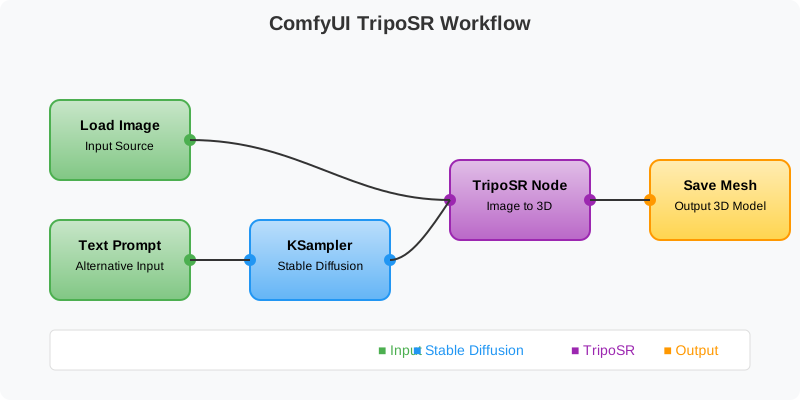
4.3 Advanced Pipeline Integration
For production workflows, integrate with other AI models:
Stable Diffusion → TripoSR Pipeline:
-
Text to Image Generation
Prompt Node → CLIP → K-Sampler → VAE Decode -
Image Enhancement (Optional)
Image → Upscaler → Face Restoration -
3D Generation
Enhanced Image → TripoSR Generate → 3D Output
5. Node Configuration & Settings
5.1 TripoSR Generate Node Parameters
Core Settings:
- input_image: Source image for 3D generation
- resolution: Output mesh resolution (256-1024)
- quality_preset: Fast/Balanced/High quality modes
- mesh_format: Output format (PLY, OBJ, GLB)
- texture_size: Texture resolution (512-2048)
Advanced Parameters:
- depth_estimation: Enable for better geometry
- normal_estimation: Improve surface normals
- cleanup_mesh: Remove artifacts automatically
- subdivision_level: Mesh detail level (0-3)
5.2 Quality vs Speed Optimization
Fast Mode (Development):
Resolution: 256
Quality: Fast
Depth Estimation: False
Processing Time: 5-10 seconds
Balanced Mode (General Use):
Resolution: 512
Quality: Balanced
Depth Estimation: True
Processing Time: 15-25 seconds
High Quality Mode (Production):
Resolution: 1024
Quality: High
Depth Estimation: True
Normal Estimation: True
Processing Time: 30-60 seconds
5.3 Memory Management
For Limited VRAM (6GB):
- Use resolution 512 or lower
- Enable “Low VRAM Mode” in settings
- Process single images only
- Close other GPU applications
For High VRAM (12GB+):
- Use resolution up to 1024
- Enable batch processing
- Use high quality presets
- Run parallel workflows
6. Advanced Techniques
6.1 Batch Processing Workflow
Process multiple images efficiently:
-
Setup Batch Input
Batch Image Loader → Image Processor → TripoSR Generate -
Configure Batch Settings
- Enable “Batch Mode” in TripoSR node
- Set batch size (2-8 depending on VRAM)
- Configure output naming convention
-
Monitor Progress
- Use Progress Bar node
- Enable console logging
- Set up automatic file organization
6.2 Multi-View Reconstruction
Generate 3D models from multiple angles:
-
Multi-View Input Setup
Image 1 → TripoSR Node 1 Image 2 → TripoSR Node 2 Image 3 → TripoSR Node 3 -
Mesh Fusion Node
- Combine multiple 3D outputs
- Align and merge geometries
- Generate unified texture
-
Quality Enhancement
- Apply mesh smoothing
- Optimize topology
- Generate high-resolution textures
6.3 Style Transfer Integration
Combine TripoSR with style transfer:
-
Style Application Pipeline
Original Image → Style Transfer → TripoSR Generate -
Consistent Style Workflows
- Apply same style to multiple images
- Generate cohesive 3D asset collections
- Maintain visual consistency
6.4 Animation Preparation
Prepare 3D models for animation:
-
Rigging-Ready Mesh
- Enable “Clean Topology” option
- Set appropriate subdivision levels
- Generate proper edge flow
-
Texture Optimization
- Create seamless textures
- Optimize UV mapping
- Generate normal maps
7. Integration with Other Tools
7.1 Blender Integration
Export TripoSR models to Blender:
-
Export Settings
- Format: OBJ or FBX
- Include textures and materials
- Set proper scale and orientation
-
Blender Import Process
- Use “Import” → “Wavefront (.obj)”
- Apply materials and textures
- Set up proper lighting
-
Post-Processing Workflow
- Retopology for animation
- Material enhancement
- Rigging and animation setup
7.2 Game Engine Pipeline
Prepare assets for game engines:
-
Unity Integration
- Export as FBX with textures
- Optimize polygon count
- Generate LOD variants
-
Unreal Engine Workflow
- Use OBJ or FBX format
- Create material instances
- Set up collision meshes
7.3 Web and AR/VR
Optimize for web and immersive experiences:
-
Web Optimization
- Export as GLB format
- Reduce polygon count
- Compress textures
-
AR/VR Preparation
- Optimize for mobile performance
- Generate proper colliders
- Create interactive elements
8. Performance Optimization
8.1 Hardware Optimization
GPU Optimization:
- Monitor VRAM usage with GPU-Z
- Use MSI Afterburner for overclocking
- Maintain optimal temperatures (below 80°C)
System Optimization:
- Close unnecessary applications
- Use high-performance power plan
- Enable GPU scheduling in Windows
8.2 Workflow Optimization
Efficient Node Organization:
- Group related nodes
- Use reroute nodes for clean connections
- Save frequently used node groups
Memory Management:
- Clear cache between large batches
- Use checkpoint nodes for long workflows
- Monitor system resources
8.3 Quality vs Speed Balance
Production Workflow:
- Fast mode for previews
- High quality for final output
- Batch processing for efficiency
Development Workflow:
- Lower resolution for testing
- Quick iterations for concept validation
- Full quality for final approval
9. Troubleshooting Guide
9.1 Common Issues
“CUDA out of memory” Error:
- Reduce image resolution
- Lower batch size
- Enable “Low VRAM Mode”
- Restart ComfyUI to clear cache
Poor Quality Output:
- Check input image quality
- Increase resolution settings
- Enable depth estimation
- Use appropriate quality preset
Slow Processing:
- Verify GPU is being used
- Check VRAM availability
- Close other applications
- Consider CPU fallback
9.2 Debug Workflow
Step-by-Step Debugging:
- Test with simple image
- Check node connections
- Verify input formats
- Monitor console output
- Test with different settings
Performance Monitoring:
- Use Task Manager for system resources
- Monitor GPU utilization
- Check processing logs
- Track memory usage
9.3 Advanced Solutions
🔧 Advanced Troubleshooting (expand)
Custom Model Loading Issues:
- Verify model file integrity
- Check file permissions
- Ensure proper model format
- Test with default models first
Network and Cloud Processing:
- Verify internet connection
- Check API credentials
- Monitor service status
- Configure proxy settings if needed
Integration Problems:
- Update ComfyUI to latest version
- Reinstall TripoSR node
- Check dependency versions
- Clear Python cache
10. Industry Applications
10.1 Game Development
Asset Creation Pipeline:
- Generate environment props from concept art
- Create character accessories from reference images
- Produce variations of existing assets
- Rapid prototyping for level design
Workflow Integration:
Concept Art → TripoSR → Blender → Game Engine
10.2 E-commerce and Product Visualization
Product Modeling:
- Convert product photos to 3D models
- Generate 360-degree views
- Create AR-ready assets
- Produce marketing materials
Automation Benefits:
- 90% reduction in modeling time
- Consistent quality across products
- Scalable for large catalogs
- Cost-effective for small businesses
10.3 Architectural Visualization
Design Workflow:
- Generate furniture from catalog images
- Create decorative elements
- Produce landscape assets
- Develop material samples
Professional Integration:
- Seamless CAD workflow integration
- High-quality rendering pipeline
- Client presentation materials
- Virtual reality experiences
10.4 Educational Content
Learning Resources:
- Generate 3D models for teaching
- Create interactive demonstrations
- Produce scientific visualizations
- Develop training materials
11. Future Developments
11.1 Upcoming Features
Enhanced Quality:
- Higher resolution outputs
- Improved texture generation
- Better geometry accuracy
- Advanced material support
Performance Improvements:
- Faster processing speeds
- Lower memory requirements
- Mobile device support
- Cloud processing options
11.2 Community Extensions
Node Ecosystem:
- Custom processing nodes
- Integration plugins
- Workflow templates
- Community presets
Open Source Contributions:
- Model improvements
- Feature enhancements
- Bug fixes and optimizations
- Documentation updates
12. FAQ Section
How do I install the TripoSR ComfyUI node?
Use ComfyUI Manager first. Search for a TripoSR or image-to-3D custom node, install it, restart ComfyUI, and check that the node appears in the add-node menu. If Manager cannot find a working package, install manually into ComfyUI/custom_nodes/ and restart.
What hardware do I need for TripoSR in ComfyUI?
Use an NVIDIA GPU with at least 6GB VRAM for basic tests. For larger images, batch runs, or chained Stable Diffusion workflows, 8GB to 12GB VRAM is safer. Keep 16GB system RAM as a minimum.
Why does the TripoSR node fail to load?
Most failures come from Python, PyTorch, or CUDA version mismatches. Use Python 3.10 or 3.11, confirm your PyTorch build matches your CUDA version, and check the ComfyUI terminal log before reinstalling everything.
What’s the best input image for TripoSR ComfyUI?
Use a single object with clear lighting, a simple background, and enough visible shape. Run background removal before TripoSR if the subject blends into the scene. PNG and JPEG both work.
Can I use TripoSR ComfyUI output in Blender?
Yes. Export GLB or OBJ from the workflow, then open the mesh in Blender for scale fixes, material cleanup, retopology, and final export.
13. Related Resources & Next Steps
Essential Reading
- TripoSR vs SF3D: Comprehensive Comparison (2025) - Compare leading 3D generation methods
- Complete TripoSR Blender Add-on Tutorial - Learn Blender integration
- TripoSR API Integration Guide - Implement custom solutions
Community Resources
- ComfyUI Community: Join the Discord for workflow sharing
- TripoSR GitHub: Report issues and contribute improvements
- YouTube Tutorials: Video guides for visual learners
- Reddit Communities: r/ComfyUI and r/MachineLearning
Professional Development
- Training Courses: Advanced ComfyUI workflows
- Certification Programs: AI-powered content creation
- Industry Conferences: Latest 3D AI developments
- Workshops: Hands-on learning opportunities
Next Steps
- Start with Basic Workflows: Master simple image-to-3D conversion
- Explore Advanced Features: Experiment with batch processing and integrations
- Join the Community: Share workflows and learn from others
- Consider Professional Training: Develop expertise for career advancement
Conclusion
The TripoSR ComfyUI node gives you a practical image-to-3D workflow inside a graph editor. By following this guide, you can:
- Set up and optimize your TripoSR ComfyUI workflow
- Create production-quality 3D assets efficiently
- Integrate seamlessly with existing creative pipelines
- Troubleshoot and optimize for maximum performance
Start experimenting with the workflows outlined in this guide, and join the growing community of creators revolutionizing 3D content creation with AI-powered tools.
Ready to transform your 3D workflow? Download ComfyUI and start creating with TripoSR today. Share your creations and join the discussion in our community forums.