TripoSR API Tutorial: Python Image-to-3D Example
This tutorial shows the shape of a TripoSR API integration: authenticate on the server, upload an image, request a 3D job, poll for completion, and download a GLB or OBJ file. Keep API keys out of browser code and treat the exact endpoint names as placeholders until you confirm them in the official TripoSR API documentation.
Quick Answer: What a TripoSR API Workflow Needs
| Step | API concern | Implementation note |
|---|---|---|
| Authentication | API key or OAuth token | Store secrets in server environment variables. |
| Upload | Image file or base64 data | Use clean, centered images for better reconstruction. |
| Generation | Async image-to-3D job | Poll job status instead of blocking one request. |
| Output | GLB, OBJ, or PLY | Pick GLB for web viewers and OBJ for DCC cleanup. |
| Errors | Rate limits, bad input, timeouts | Log request IDs and retry only safe failures. |
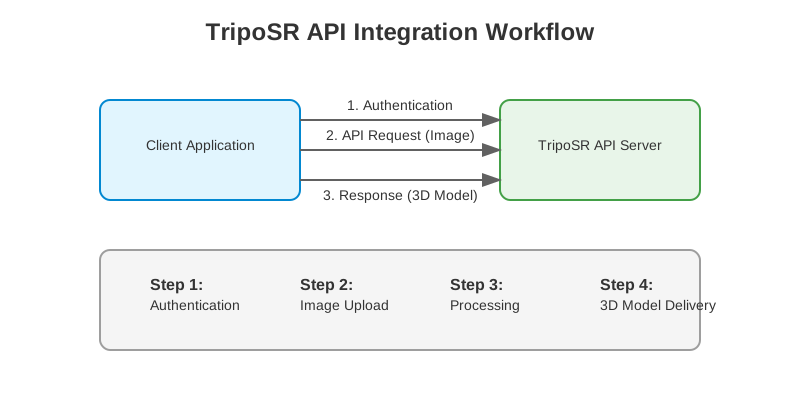 Figure 1: Overview of the TripoSR API integration workflow
Who is this guide for?
- Developers seeking a TripoSR API tutorial to add AI 3D modeling features to their software.
- Businesses wanting to integrate TripoSR capabilities into their platforms.
- Anyone exploring AI 3D modeling APIs for innovative projects.
Before building production code, compare adjacent TripoSR workflows:
- Install and verify the upstream repository with the TripoSR GitHub install helper.
- Prototype the visual graph first with the TripoSR ComfyUI Workflow Generator if you need to validate prompts, model.ckpt placement, and node dependencies before writing API code.
- Prototype visually with the TripoSR ComfyUI node guide.
- Normalize downloaded API output for DCC cleanup with the GLB to OBJ converter or the glTF to OBJ converter.
- Clean API-generated meshes with the TripoSR Blender add-on workflow.
- Choose between single-image and multi-view reconstruction in TripoSR vs SF3D.
- Evaluate open reconstruction stacks in the open source 3D reconstruction tools comparison.
Prerequisites
Before you begin the integration, ensure you have the following:
- API Access & Credentials: Obtain your API key or necessary credentials from the official TripoSR platform (Note: Specific details depend on the official API release).
- Development Environment: Set up your preferred development environment (e.g., Python, Node.js, etc.) with tools for making HTTP requests.
- Understanding of REST APIs: Basic knowledge of how REST APIs work, including concepts like endpoints, methods (GET, POST), headers, and JSON data format.
- (Optional) TripoSR SDK: If a specific TripoSR SDK is available, download and install it according to the official documentation. This can often simplify the integration process.
Tip: Read the official TripoSR API documentation before you write production code. Endpoint names, rate limits, and supported output formats can change.
Integrating TripoSR: Step-by-Step
Integrating an API typically involves authentication, making requests to specific endpoints, and handling the responses.
Step 1: Authentication
Most APIs require authentication to identify the user and control access. TripoSR’s API will likely use an API key or OAuth token.
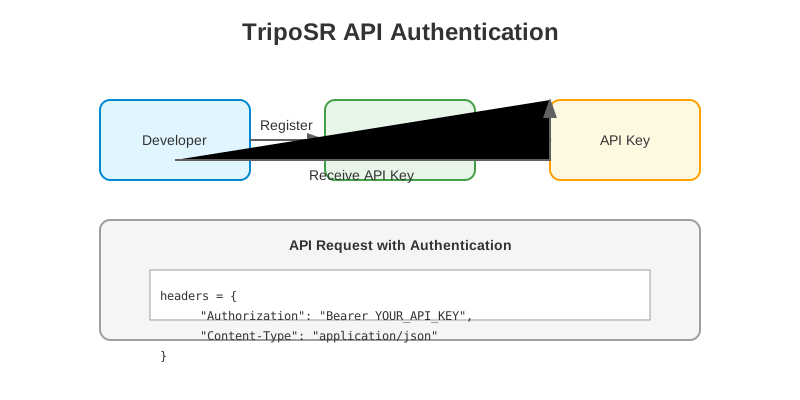 Figure 2: TripoSR API authentication process
- API Key: Usually passed in the request headers (e.g.,
Authorization: Bearer YOUR_API_KEYor a custom header likeX-API-Key: YOUR_API_KEY). - OAuth: Might involve a more complex flow to obtain an access token, which is then used similarly to an API key.
Authentication Code Example:
// JavaScript example
const headers = new Headers();
headers.append('Authorization', `Bearer ${YOUR_API_KEY}`);
headers.append('Content-Type', 'application/json');

// These headers will be used in all API requests
Security note: Keep your API key out of client-side code. Use server-side code or secure environment variables for authentication.
Refer to the official TripoSR API documentation for the exact authentication method.
Step 2: Making API Calls (Example: Image-to-3D)
The core functionality is generating a 3D model from an image. This typically involves a POST request to a specific endpoint (e.g., /v1/models/generate).
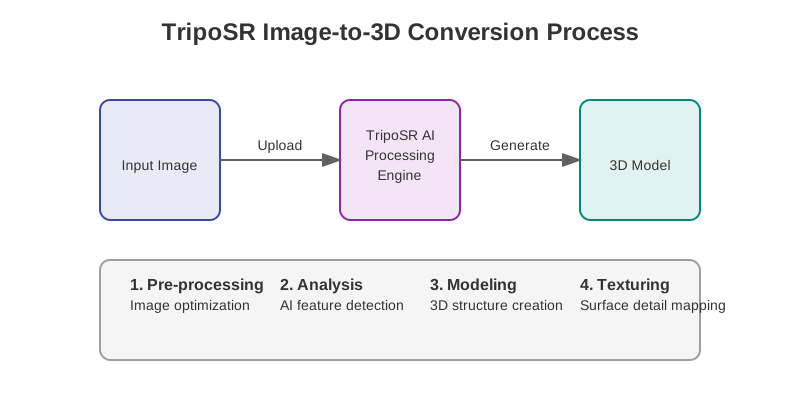 Figure 3: TripoSR image-to-3D conversion process
Request Parameters might include:
image_data: The input image file (often Base64 encoded or sent as multipart/form-data).output_format: Desired 3D model format (e.g.,glb,obj).processing_options: Optional parameters to control model detail, refinement, etc.
💡 Optimization Tip: For best results, ensure your input images have good lighting, clear subject focus, and minimal background noise. Images with 1024×1024 resolution often work well.
Example (Conceptual Python using requests):
import requests
import base64

API_ENDPOINT = "https://api.triposr.ai/v1/models/generate" # Replace with actual endpoint
API_KEY = "YOUR_API_KEY" # Replace with your key
IMAGE_PATH = "path/to/your/image.png"

headers = {
    "Authorization": f"Bearer {API_KEY}",
    "Content-Type": "application/json" # Or multipart/form-data if sending file directly
}

# Read and encode image (if sending as base64)
with open(IMAGE_PATH, "rb") as img_file:
    encoded_image = base64.b64encode(img_file.read()).decode('utf-8')

data = {
    "image_data": encoded_image,
    "output_format": "glb"
    # Add other options as needed
}

try:
    response = requests.post(API_ENDPOINT, headers=headers, json=data)
    response.raise_for_status() # Raises HTTPError for bad responses (4XX, 5XX)

    # Process successful response (Step 3)
    result = response.json()
    print("API Call Successful:", result)

    # Example: Get model URL or data
    if 'model_url' in result:
        print(f"Model ready at: {result['model_url']}")
    elif 'model_data' in result:
        # Handle direct model data (e.g., save to file)
        print("Received model data.")

except requests.exceptions.RequestException as e:
    print(f"API Request Failed: {e}")
    # Handle error (Step 3)
Step 3: Handling Responses
Response Types:
- Success (2xx Status Codes): The response (often JSON) will contain information about the generated model, such as a URL to download it, direct model data, or a job ID for asynchronous processing.
- Client Errors (4xx Status Codes): Indicate issues with your request (e.g.,
401 Unauthorized,400 Bad Requestdue to invalid parameters,429 Too Many Requestsdue to rate limiting). - Server Errors (5xx Status Codes): Indicate problems on the TripoSR server side.
Robust Error Handling Example:
async function generateModel(imageData) {
  try {
    const response = await fetch('https://api.triposr.ai/v1/models/generate', {
      method: 'POST',
      headers: {
        'Authorization': `Bearer ${API_KEY}`,
        'Content-Type': 'application/json'
      },
      body: JSON.stringify({
        image_data: imageData,
        output_format: 'glb'
      })
    });

    // Handle different status codes
    if (response.ok) {
      const data = await response.json();
      return { success: true, data };
    } else if (response.status === 401) {
      console.error('Authentication failed: Check your API key');
      return { success: false, error: 'auth_error' };
    } else if (response.status === 429) {
      console.error('Rate limit exceeded: Try again later');
      return { success: false, error: 'rate_limit' };
    } else {
      console.error(`API error: ${response.status}`);
      return { success: false, error: 'api_error', status: response.status };
    }
  } catch (error) {
    console.error('Network or parsing error:', error);
    return { success: false, error: 'network_error' };
  }
}
⚠️ Important: Always implement robust error handling to manage different scenarios gracefully. Log errors and provide informative feedback to your application’s users.
Best Practices for TripoSR API Usage
Security Considerations
- Secure API Keys: Never hardcode API keys directly in client-side code. Use environment variables or secure configuration management.
- Rate Limiting: Be mindful of API rate limits. Implement strategies like exponential backoff for retries if you hit limits.
- Input Validation: Always validate user-provided images before sending them to the API to prevent security issues.
Performance Optimization
- Asynchronous Processing: For potentially long-running generation tasks, check if the API supports asynchronous operations (returning a job ID to check later) to avoid blocking your application.
- Input Optimization: Pre-process input images (resolution, format) as recommended by TripoSR documentation for best results.
- Caching: Consider caching generated models for frequently requested images to reduce API calls and improve response times.
Development Efficiency
- SDK Usage: If a TripoSR SDK is available, prefer using it over raw HTTP requests, as it handles many low-level details like authentication and request formatting.
- Webhooks: For production applications, use webhooks (if supported) to receive notifications when long-running model generation tasks complete.
- Logging: Implement comprehensive logging for all API interactions to help with debugging and monitoring usage.
Implementation Checklist:
- Secure API key storage
- Proper error handling for all API responses
- Rate limiting management
- Image pre-processing pipeline
- Asynchronous processing for long-running tasks
- User feedback during model generation
- Comprehensive logging
Use Cases & Examples
Integrating the TripoSR API enables exciting applications across multiple industries:
E-commerce Innovation
- Interactive Product Visualization: Generate 3D previews of products from standard photos, allowing customers to view items from all angles.
- Virtual Try-On: Enable customers to visualize how products would look in their space before purchasing.
- Custom Product Configurators: Let customers customize products and see real-time 3D renderings.
Gaming & Entertainment
- User-Generated Content: Allow players to create custom assets by uploading images.
- Rapid Prototyping: Quickly generate 3D assets during game development to test concepts.
- Dynamic World Building: Generate environment elements on demand based on gameplay.
AR/VR Applications
- Immersive Experiences: Populate virtual worlds with 3D objects generated from real-world images.
- Mixed Reality: Blend real and virtual environments with AI-generated 3D models.
- Training Simulations: Create realistic 3D objects for educational and training purposes.
Design & Architecture
- Concept Visualization: Transform sketches or concept images into 3D models instantly.
- Architectural Visualization: Convert building photos into 3D models for renovation planning.
- Interior Design: Help clients visualize furniture and decor in their spaces.
FAQ: TripoSR API Integration
Does TripoSR have an API?
TripoSR can be integrated through API-style image-to-3D workflows when an official or hosted endpoint is available. Confirm the current endpoint, authentication method, and supported output formats in the provider’s documentation before shipping production code.
Should I call the TripoSR API from the browser?
No. Call it from your server so your API key stays private. Your frontend can upload an image to your backend, and your backend can send the request to TripoSR.
What output format should I request?
Use GLB for web viewers and product previews. Use OBJ or PLY if your next step is cleanup in Blender, Maya, or another DCC tool.
How should I handle long-running 3D jobs?
Use an async job pattern. Submit the image, store the returned job ID, poll for status, and let the user know when the model is ready.
What errors should I plan for?
Plan for invalid images, authentication failures, rate limits, timeouts, and failed generation jobs. Log request IDs and avoid retrying bad input without changing it.
Conclusion
Integrating a TripoSR AI 3D modeling API gives your app a server-side path from 2D image input to downloadable 3D assets. Start with authentication, file upload, job polling, output handling, and clear error states before you build a larger product workflow.
Key Takeaways
- The TripoSR API provides a streamlined way to generate 3D models from 2D images
- Proper authentication, error handling, and optimization are critical for successful integration
- Consider asynchronous processing for production applications with high volume
- Always follow security best practices when handling API keys and user data
Next Steps
- Get Your API Key: Register on the TripoSR platform to obtain your credentials
- Explore the Documentation: Review the complete API reference for all available endpoints
- Start with a Proof of Concept: Build a simple demo to test the integration
- Optimize for Production: Implement caching, error handling, and monitoring
Always refer to the official documentation for the most up-to-date endpoint details, parameters, and TripoSR SDK usage guidelines.
Ready to transform your 2D images into immersive 3D experiences? Get started with TripoSR today!