TripoSR Blender Add-on: Install & Workflow Guide
TL;DR: The TripoSR Blender add-on helps you generate a base mesh from a reference image, then clean topology, materials, and scale inside Blender. Install the add-on, choose cloud or local processing, test one simple object, and finish the asset with Blender’s native modeling tools.
Quick Answer: How the TripoSR Blender Workflow Works
| Step | What to do in Blender |
|---|---|
| Install | Add the .zip file through Edit → Preferences → Add-ons → Install. |
| Connect | Add an API key for cloud processing or configure local GPU processing. |
| Generate | Pick a clean reference image and run image-to-3D from the TripoSR panel. |
| Clean up | Inspect normals, reduce polygons, fix scale, and assign materials. |
| Export | Save as GLB, FBX, OBJ, or a Blender scene depending on the target app. |
This page is for artists and technical users who searched for a TripoSR Blender add-on, a Blender AI 3D workflow, or a practical install guide.
Use this Blender guide as the cleanup step in a larger TripoSR workflow:
- Install the upstream local project with the TripoSR GitHub install helper.
- If your mesh starts in ComfyUI, download a starter graph from the TripoSR ComfyUI Workflow Generator before exporting OBJ or GLB for Blender cleanup.
- Convert a print-oriented mesh with the free STL to OBJ converter, or package a cleaned OBJ asset for web delivery with the OBJ to GLB converter.
- Generate source meshes from a node graph with the TripoSR ComfyUI node guide.
- Automate image-to-3D jobs with the TripoSR API tutorial.
- Decide whether your project needs single-image or multi-view reconstruction in TripoSR vs SF3D.
- Compare Blender-friendly reconstruction stacks in the open source 3D reconstruction tools comparison.
1. Why Use TripoSR with Blender
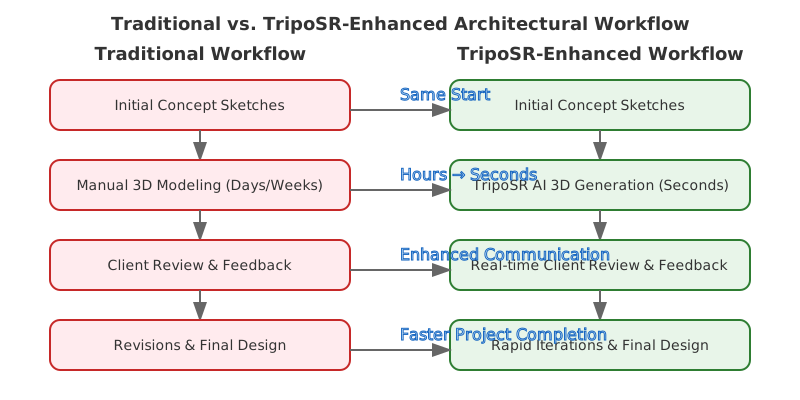
TripoSR is useful inside Blender because it gives you a starting mesh instead of a finished asset. You still use Blender for the work that matters: retopology, material cleanup, scale, lighting, and final export.
- Generate base meshes in seconds from reference images
- Maintain creative control with Blender’s powerful editing tools
- Blend AI-generated and hand-crafted elements
- Accelerate iteration cycles for concept development
2. Installation & Setup Guide
2.1 Prerequisites Check
Before installing the TripoSR Blender add-on, ensure your system meets these requirements:
# System Requirements
Blender: 3.6+ (recommended: 4.0+)
Python: 3.10+
GPU: NVIDIA with 6GB+ VRAM (8GB+ for local processing)
RAM: 16GB minimum, 32GB recommended
Storage: 5GB free space for models and cache
2.2 Step-by-Step Installation
Option 1: Marketplace Installation (Recommended)
-
Download the Add-on
- Visit TripoSR Marketplace
- Download
triposr-blender-addon-v2.1.zip - Ensure you download the latest stable version
-
Install in Blender
Blender → Edit → Preferences → Add-ons → Install Navigate to downloaded .zip file → Install Add-on Search "TripoSR" → Enable the checkbox -
Configure API Settings
- Obtain API key from TripoSR Dashboard
- In Blender: N-Panel → TripoSR → Settings → Enter API Key
- Test connection with “Verify Connection” button
Option 2: Manual Installation
# Clone the repository
git clone https://github.com/triposr/blender-addon.git
cd blender-addon

# Install dependencies
pip install -r requirements.txt

# Copy to Blender addons directory
cp -r triposr_addon ~/.config/blender/4.0/scripts/addons/
2.3 First-Time Setup
After installation, configure these essential settings:
-
Processing Mode
- Cloud: Faster, requires internet (recommended for beginners)
- Local: Slower, works offline (requires powerful GPU)
-
Quality Presets
- Draft (0.5s): Quick previews, lower quality
- Standard (2s): Balanced quality and speed
- High (8s): Maximum quality for final renders
-
Output Settings
- Default format: GLB (recommended for Blender)
- Texture resolution: 2K (adjustable based on needs)
- Mesh density: Medium (can be optimized later)
3. Basic Workflow Tutorial
3.1 Your First TripoSR Generation
Let’s create your first AI-generated 3D model:
Step 1: Prepare Your Reference Image
Optimal Image Requirements:
✓ Resolution: 512×512 minimum (1024×1024 recommended)
✓ Subject: Clear, well-lit object
✓ Background: Clean or easily removable
✓ Angle: 3/4 view for best results
✗ Avoid: Blurry, dark, or heavily shadowed images
Step 2: Generate the 3D Model
-
Open TripoSR Panel
- Press
Nto open side panel - Navigate to TripoSR tab
- Press
-
Load Reference Image
- Click “Load Image” button
- Select your prepared reference image
- Preview will appear in the panel
-
Configure Generation Settings
Quality: Standard Mesh Density: Medium Texture Resolution: 2K Remove Background: Auto -
Generate Model
- Click “Generate 3D Model”
- Wait 2-8 seconds depending on settings
- Model appears in viewport automatically
Step 3: Initial Review and Adjustment
Once generation completes:
-
Inspect the Mesh
- Switch to Edit mode (
Tab) - Check for holes or artifacts
- Verify mesh topology
- Switch to Edit mode (
-
Review Materials
- Switch to Material Properties panel
- Check PBR material setup
- Adjust roughness/metallic values if needed
-
Scale and Position
- Press
Sto scale model appropriately - Press
Gto move to desired position - Press
Rfor rotation adjustments
- Press
4. Advanced Workflow Techniques
4.1 Batch Processing Multiple Objects
For efficient production workflows:
# Batch processing script (run in Blender's Text Editor)
import bpy
import os

def batch_generate_models(image_folder, output_collection):
    """Generate multiple models from a folder of images"""

    # Get TripoSR operator
    triposr = bpy.ops.triposr

    # Create collection for generated models
    collection = bpy.data.collections.new(output_collection)
    bpy.context.scene.collection.children.link(collection)

    # Process each image
    for filename in os.listdir(image_folder):
        if filename.lower().endswith(('.png', '.jpg', '.jpeg')):
            image_path = os.path.join(image_folder, filename)

            # Set active collection
            bpy.context.view_layer.active_layer_collection = \
                bpy.context.view_layer.layer_collection.children[output_collection]

            # Generate model
            triposr.generate_from_image(
                image_path=image_path,
                quality='standard',
                auto_scale=True
            )

            # Rename object
            if bpy.context.active_object:
                bpy.context.active_object.name = f"Generated_{filename.split('.')[0]}"

# Usage
batch_generate_models("/path/to/images", "AI_Generated_Models")
4.2 Optimization Pipeline
Automatic Retopology
# Retopology script for TripoSR meshes
def optimize_triposr_mesh(target_faces=5000):
    """Optimize generated mesh for better topology"""

    obj = bpy.context.active_object

    # Enter Edit mode
    bpy.context.view_layer.objects.active = obj
    bpy.ops.object.mode_set(mode='EDIT')

    # Select all
    bpy.ops.mesh.select_all(action='SELECT')

    # Decimate to target face count
    current_faces = len(obj.data.polygons)
    ratio = target_faces / current_faces

    bpy.ops.object.mode_set(mode='OBJECT')

    # Add Decimate modifier
    decimate = obj.modifiers.new(name="Decimate", type='DECIMATE')
    decimate.ratio = min(ratio, 1.0)

    # Apply modifier
    bpy.context.view_layer.objects.active = obj
    bpy.ops.object.modifier_apply(modifier="Decimate")

    return obj
Smart Material Enhancement
def enhance_triposr_materials():
    """Enhance TripoSR generated materials with procedural details"""

    obj = bpy.context.active_object

    if not obj or not obj.data.materials:
        return

    for mat in obj.data.materials:
        if not mat.use_nodes:
            mat.use_nodes = True

        nodes = mat.node_tree.nodes
        links = mat.node_tree.links

        # Get existing nodes
        principled = nodes.get("Principled BSDF")
        if not principled:
            continue

        # Add detail enhancement
        noise = nodes.new(type='ShaderNodeTexNoise')
        noise.inputs["Scale"].default_value = 50.0
        noise.inputs["Detail"].default_value = 8.0
        noise.inputs["Roughness"].default_value = 0.5

        # Mix with existing color
        mix = nodes.new(type='ShaderNodeMixRGB')
        mix.blend_type = 'OVERLAY'
        mix.inputs["Fac"].default_value = 0.1

        # Connect nodes
        if principled.inputs["Base Color"].links:
            # Get existing color input
            color_input = principled.inputs["Base Color"].links[0].from_socket
            links.new(color_input, mix.inputs["Color1"])

        links.new(noise.outputs["Color"], mix.inputs["Color2"])
        links.new(mix.outputs["Color"], principled.inputs["Base Color"])
4.3 Integration with Existing Scenes
Smart Asset Placement
When integrating TripoSR models into existing scenes:
-
Scale Consistency
# Auto-scale based on scene reference def match_scene_scale(generated_obj, reference_obj): ref_dimensions = reference_obj.dimensions gen_dimensions = generated_obj.dimensions # Calculate scale factor scale_factor = max(ref_dimensions) / max(gen_dimensions) # Apply scale generated_obj.scale = (scale_factor, scale_factor, scale_factor) bpy.ops.object.transform_apply(scale=True) -
Lighting Adaptation
- Match ambient lighting conditions
- Adjust material roughness for scene consistency
- Add appropriate shadow casting
-
LOD (Level of Detail) Setup
def create_lod_variants(base_obj, distances=[10, 50, 100]):
    """Create multiple LOD levels for performance optimization"""

    lod_objects = []

    for i, distance in enumerate(distances):
        # Duplicate object
        lod_obj = base_obj.copy()
        lod_obj.data = base_obj.data.copy()
        lod_obj.name = f"{base_obj.name}_LOD{i}"

        bpy.context.collection.objects.link(lod_obj)

        # Apply appropriate decimation
        decimate_ratio = 1.0 / (i + 1) ** 1.5

        # Add decimate modifier
        decimate = lod_obj.modifiers.new(name="LOD_Decimate", type='DECIMATE')
        decimate.ratio = max(decimate_ratio, 0.1)

        lod_objects.append(lod_obj)

    return lod_objects
5. Industry-Specific Workflows
5.1 Architectural Visualization
For architectural projects, optimize your TripoSR workflow:
# Architectural workflow preset
def architectural_preset():
    """Configure TripoSR for architectural elements"""

    settings = {
        'quality': 'high',
        'mesh_density': 'high',
        'texture_resolution': '4K',
        'preserve_edges': True,
        'auto_uv_unwrap': True,
        'generate_normal_maps': True
    }

    return settings

# Typical architectural use cases:
# - Furniture from catalog images
# - Decorative elements from reference photos
# - Landscape elements (trees, rocks)
# - Building details and ornaments
5.2 Product Visualization
Optimize for e-commerce and product design:
# Product visualization workflow
def product_workflow(image_path, product_type='generic'):
    """Specialized workflow for product modeling"""

    presets = {
        'furniture': {
            'quality': 'high',
            'auto_scale': True,
            'generate_pbr': True,
            'create_variants': ['standard', 'worn', 'new']
        },
        'electronics': {
            'quality': 'ultra',
            'preserve_sharp_edges': True,
            'metallic_enhancement': True,
            'reflection_setup': True
        },
        'clothing': {
            'quality': 'standard',
            'soft_body_prep': True,
            'fabric_shader': True,
            'size_variants': True
        }
    }

    return presets.get(product_type, presets['generic'])
5.3 Game Development Pipeline
Integration with game development workflows:
-
Asset Optimization
- Target polygon counts for different platforms
- Automatic LOD generation
- Texture atlas optimization
-
Export Presets
# Game engine export settings
game_export_presets = {
    'unity': {
        'format': 'FBX',
        'scale': 0.01,  # Unity scale factor
        'texture_format': 'PNG',
        'include_materials': True
    },
    'unreal': {
        'format': 'FBX',
        'scale': 1.0,
        'texture_format': 'TGA',
        'collision_mesh': True
    },
    'godot': {
        'format': 'GLTF',
        'scale': 1.0,
        'texture_format': 'WebP',
        'compress_meshes': True
    }
}
6. Troubleshooting Common Issues
6.1 Generation Problems
Issue: Poor mesh quality or artifacts
Solutions:
- Check input image quality (increase resolution)
- Try different background removal settings
- Adjust mesh density settings
- Use multiple angles if available
Issue: Slow generation times
Solutions:
# Performance optimization
def optimize_performance():
    """Optimize Blender for TripoSR performance"""

    # Disable unnecessary viewport features
    bpy.context.space_data.overlay.show_wireframes = False
    bpy.context.space_data.overlay.show_face_orientation = False

    # Reduce viewport samples
    bpy.context.scene.render.engine = 'EEVEE'
    bpy.context.scene.eevee.taa_render_samples = 64

    # Clear unused data
    bpy.ops.outliner.orphans_purge(do_recursive=True)
6.2 Material Issues
Issue: Materials not displaying correctly
Solutions:
- Switch viewport shading to Material Preview or Rendered
- Check if GPU compute is enabled in Preferences
- Verify material nodes are properly connected
- Update graphics drivers
6.3 Integration Conflicts
Issue: Add-on conflicts with other plugins
Solutions:
# Safe add-on loading
def safe_addon_check():
    """Check for potential addon conflicts"""

    conflicting_addons = [
        'other_ai_modeling_addon',
        'deprecated_mesh_generator'
    ]

    active_addons = bpy.context.preferences.addons.keys()

    for addon in conflicting_addons:
        if addon in active_addons:
            print(f"Warning: Potential conflict with {addon}")
            # Disable conflicting addon
            bpy.ops.preferences.addon_disable(module=addon)
7. Advanced Tips and Tricks
7.1 Custom Presets
Create your own workflow presets:
# Custom preset system
class TripoSRPreset:
    def __init__(self, name, settings):
        self.name = name
        self.settings = settings

    def apply(self):
        """Apply preset settings to TripoSR"""
        for key, value in self.settings.items():
            setattr(bpy.context.scene.triposr_settings, key, value)

# Example presets
presets = {
    'speed_modeling': TripoSRPreset('Speed Modeling', {
        'quality': 'draft',
        'auto_optimize': True,
        'quick_materials': True
    }),
    'final_render': TripoSRPreset('Final Render', {
        'quality': 'ultra',
        'generate_details': True,
        'pbr_enhancement': True
    })
}
7.2 Automation Scripts
Automate repetitive tasks:
# Automated workflow script
def automated_product_pipeline(image_folder, output_folder):
    """Complete automated pipeline for product modeling"""

    # Setup scene
    bpy.ops.object.select_all(action='SELECT')
    bpy.ops.object.delete(use_global=False)

    # Process each image
    for image_file in os.listdir(image_folder):
        if not image_file.lower().endswith(('.png', '.jpg')):
            continue

        # Generate model
        triposr.generate_from_image(
            image_path=os.path.join(image_folder, image_file),
            quality='standard'
        )

        # Optimize
        optimize_triposr_mesh(target_faces=3000)
        enhance_triposr_materials()

        # Export
        output_path = os.path.join(
            output_folder,
            f"{image_file.split('.')[0]}.glb"
        )
        bpy.ops.export_scene.gltf(
            filepath=output_path,
            export_selected=True
        )

        # Clean up
        bpy.ops.object.select_all(action='SELECT')
        bpy.ops.object.delete(use_global=False)
7.3 Quality Control Checklist
Before finalizing your models:
def quality_check(obj):
    """Automated quality control for TripoSR models"""

    issues = []

    # Check mesh integrity
    if len(obj.data.polygons) > 50000:
        issues.append("High polygon count - consider optimization")

    # Check materials
    if not obj.data.materials:
        issues.append("No materials assigned")

    # Check UV mapping
    if not obj.data.uv_layers:
        issues.append("No UV mapping found")

    # Check scale
    if max(obj.dimensions) > 100:
        issues.append("Object may be too large - check scale")

    return issues
8. Performance Optimization
8.1 Hardware Optimization
Maximize your hardware performance:
# Hardware optimization settings
def optimize_hardware():
    """Configure Blender for optimal TripoSR performance"""

    prefs = bpy.context.preferences

    # GPU settings
    cycles_prefs = prefs.addons['cycles'].preferences
    cycles_prefs.compute_device_type = 'CUDA'  # or 'OPENCL'

    # Enable all available CUDA devices
    for device in cycles_prefs.devices:
        device.use = True

    # Memory settings
    prefs.system.memory_cache_limit = 8192  # 8GB cache
    prefs.system.use_gpu_subdivision = True
8.2 Workflow Optimization
Streamline your workflow for maximum efficiency:
-
Hotkey Setup
# Custom hotkeys for TripoSR def setup_triposr_hotkeys(): # Quick generation: Ctrl+Shift+G # Optimize mesh: Ctrl+Shift+O # Export ready: Ctrl+Shift+E pass -
Template Scenes
- Create template .blend files for different project types
- Pre-configure lighting, camera angles, and export settings
- Save custom node groups for material enhancement
9. Community Resources and Support
9.1 Official Resources
- Documentation: docs.triposrai.com/blender
- Video Tutorials: learn.triposrai.com/blender-playlist
- Community Forum: community.triposrai.com
- GitHub Repository: github.com/triposr/blender-addon
9.2 Community Contributions
Popular community-created resources:
- Asset Library: User-shared presets and templates
- Script Collection: Community automation scripts
- Tutorial Series: User-generated educational content
- Bug Reports: Community-driven quality assurance
9.3 Getting Help
When you need assistance:
- Built-in Help: Press
F1in TripoSR panel - Community Discord: discord.gg/triposr
- Support Tickets: support.triposrai.com
- Video Call Support: Available for Pro subscribers
10. What’s Next?
10.1 Upcoming Features (2025 Roadmap)
- Multi-image input: Generate models from multiple angles
- Animation support: AI-powered rigging and animation
- Real-time collaboration: Multi-user editing sessions
- Enhanced materials: Procedural material generation
- Mobile support: TripoSR for Blender on tablets
10.2 Advanced Learning Path
Continue your TripoSR journey:
- Intermediate Course: Advanced material workflows
- Scripting Workshop: Custom automation development
- Industry Specialization: Focused training for your field
- Certification Program: Become a TripoSR expert
11. FAQ: TripoSR Blender Add-on
How do I install the TripoSR Blender add-on?
Open Blender, go to Edit → Preferences → Add-ons → Install, choose the TripoSR add-on .zip, enable it, and restart Blender if the panel does not appear. Start with one simple object before testing production assets.
Does the TripoSR Blender add-on need an API key?
Cloud processing usually needs an API key. Local processing depends on your setup and GPU. Keep keys in Blender preferences or environment variables, not in files you share with a team.
What GPU do I need for local TripoSR in Blender?
Use 6GB VRAM as a minimum for basic tests. For cleaner workflows and larger images, use 8GB or more. If your GPU is weaker, use cloud processing or lower input resolution.
What should I do after TripoSR creates the mesh?
Inspect normals, reduce polygon count if needed, fix scale, clean materials, and export the model in the format your target app needs. Treat TripoSR as the base-mesh step, not the final asset step.
Is TripoSR better in Blender or ComfyUI?
Use Blender when you need mesh editing and final asset cleanup. Use ComfyUI when you want a node graph that combines image generation, preprocessing, and 3D reconstruction.
12. Conclusion and Next Steps
The TripoSR Blender add-on is useful when you need a quick base mesh from a reference image and want to finish the asset in Blender. After working through this tutorial, you can:
- Install and configure the add-on properly
- Execute efficient basic and advanced workflows
- Troubleshoot common issues independently
- Optimize performance for your specific use case
- Integrate AI-generated content with traditional modeling
Your Next Action Items
- Download and install the TripoSR Blender add-on
- Complete the basic workflow with your own reference images
- Experiment with advanced techniques relevant to your projects
- Join the community to share your results and learn from others
- Explore our related tutorials for deeper expertise
Ready to revolutionize your 3D workflow? Start with our beginner-friendly image collection or dive into our advanced scripting guide for custom automation.
Related Resources
- TripoSR vs SF3D: Comprehensive Comparison (2025)
- TripoSR API Integration Guide
- Step-by-Step Guide: Generating 3D Models from Images with TripoSR
- TripoSR Optimization Best Practices
Tags: Blender Workflows | AI 3D Modeling | Tutorial Guides